Miscellaneous 4/16/2026

MGMT 675: Generative AI for Finance

Kerry Back, Rice University

Claude

Claude Desktop

Claude Desktop has three modes: Chat, Cowork, and Code. In all three, prompts go to and responses come from the cloud. The modes differ in where Python execution happens.

  • Chat: Python runs on Anthropic’s servers. Only libraries pre-installed by Anthropic. No internet access from Python (sandboxed).
  • Cowork: Python runs on your computer. Any libraries you want. No internet access from Python (sandboxed).
  • Code: Python runs on your computer. Any libraries you want. Internet available.

Code mode is the most powerful but also the most permissive — Claude can read/write files, run shell commands, and access the internet. Use it when you need full control; use Chat or Cowork for safer exploration.

VS Code (Visual Studio Code)

Download VS Code from code.visualstudio.com. Install and open it.
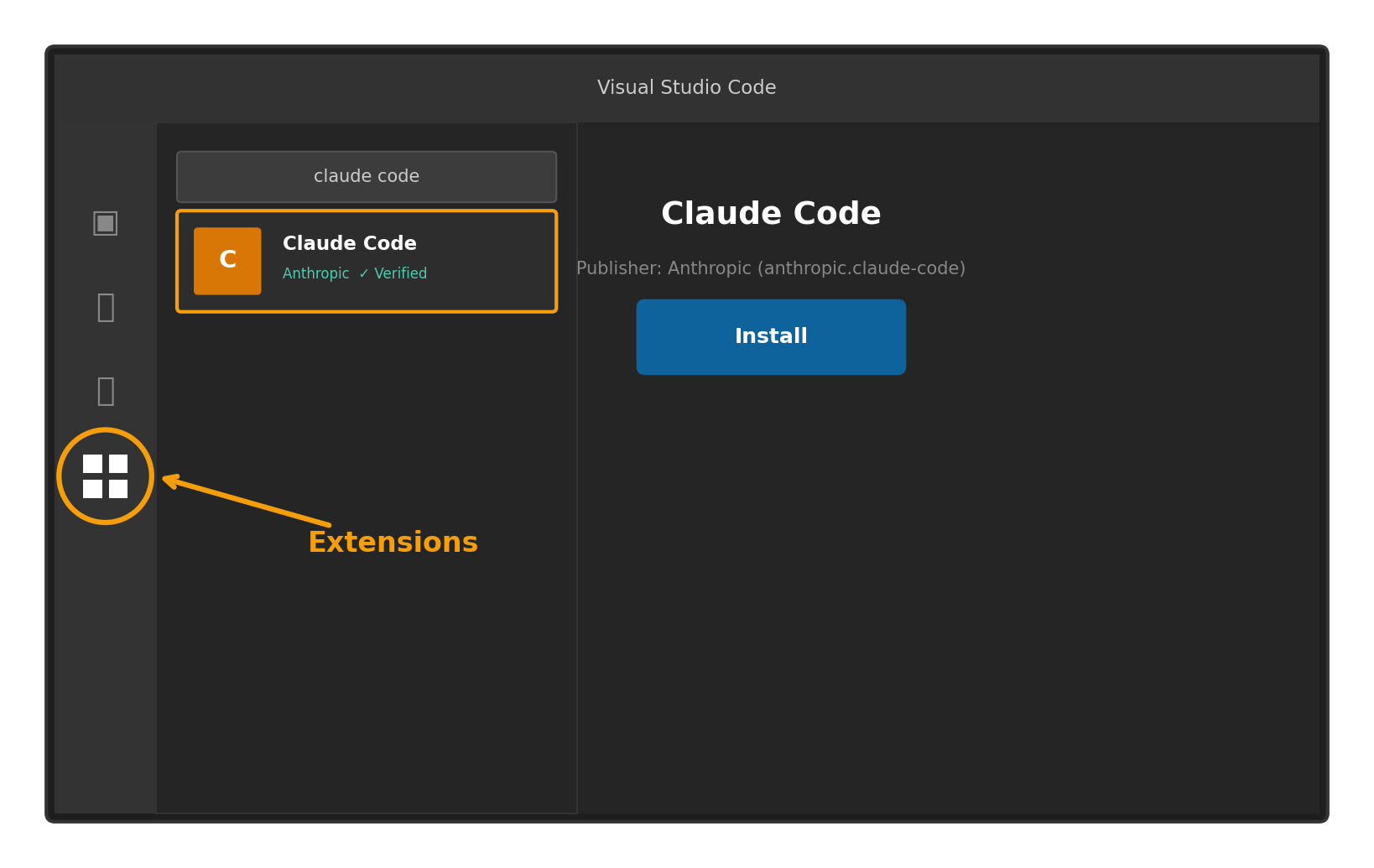
Click the Extensions icon in the left sidebar (four squares), search for “claude code”, and install the one published by Anthropic (look for the verified checkmark). The extension ID is anthropic.claude-code.

Using Claude Code in VS Code

  1. Click the Claude icon in the left activity bar to open the Claude Code panel
  2. Click + New Session to start a conversation
  3. You can open multiple sessions to work on different tasks in parallel

You can also open Claude Code from the command palette: press Ctrl+Shift+P (or Cmd+Shift+P on Mac) and type “Claude”.

Try It: A Single Prompt, Three Files

Ask Claude Code:

Calculate and plot the P/E ratios of the Magnificent 7 stocks over the past 3 years. Save the chart as a PNG. Write a Word document ranking the stocks by current P/E with a brief investment commentary.

Claude will create:

  • A Python script (.py) that fetches data, computes ratios, and generates the outputs
  • A chart (.png) visualizing P/E ratios over time
  • A Word document (.docx) with analysis and commentary

This is a good test of Claude Code’s capabilities. If something doesn’t work, just tell Claude what went wrong — it will read the error and fix it.

Slash Commands

Type / in Claude Code to see all available commands. The most useful:

  • /resume — resume a previous conversation by name or ID, picking up where you left off
  • /rewind — undo Claude’s code changes and revert the conversation to an earlier point
  • /btw — ask a quick side question without adding it to the conversation history
  • /diff — open an interactive diff viewer to review all uncommitted changes
  • /plan — enter read-only planning mode so Claude designs a strategy before making changes
  • /model — switch models on the fly (e.g., from Sonnet to Opus for harder tasks)
  • /cost — check real-time token usage and spending

If you install (or ask Claude to install) the critique skill, you can prompt /critique filename to get a multi-perspective review of your work.

Jupyter Notebooks and Colab

Jupyter Notebooks

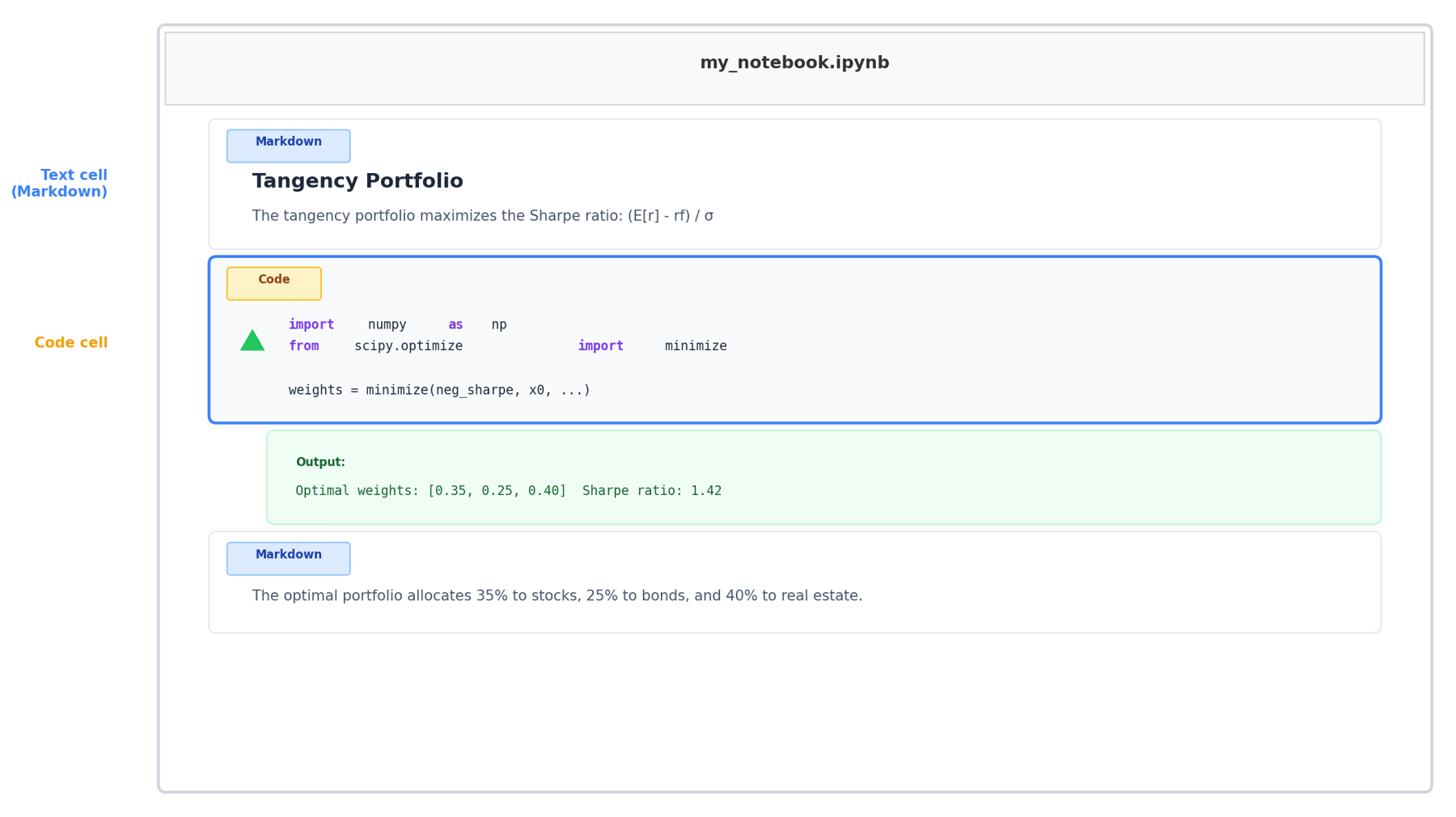
A Jupyter notebook (.ipynb) is a document with two types of cells:

  • Code cells — write and run Python (or R, Julia, etc.). Output appears directly below the cell.
  • Text cells — written in Markdown, a simple formatting language. Use # Heading, **bold**, *italic*, bullet lists, LaTeX math ($E[r]$), etc.
Google Colab

Google Colab is a free, cloud-hosted Jupyter notebook environment — no installation required.

  • Access via your browser, notebooks are saved to Google Drive
  • Free access to GPUs and TPUs for machine learning
  • Can install whatever libraries you want
  • Share notebooks like Google Docs

Gemini in Colab: Google’s AI assistant is built into Colab. It can generate code, explain errors, and autocomplete — similar to Claude Code but inside the notebook.

Colab is ideal for quick experiments and for running code that needs a GPU (e.g., fine-tuning). For longer projects with many files, VS Code + Claude Code is more powerful.

VS Code

To work with Jupyter notebooks locally in VS Code:

  1. Open Extensions (four squares icon) and install:
    • Python (by Microsoft) — Python language support
    • Jupyter (by Microsoft) — notebook support in VS Code
  2. Create a new file with the .ipynb extension, or open an existing notebook

Then ask Claude Code:

Generate a Jupyter notebook with text and code cells explaining how to calculate the tangency portfolio when there are no short sales constraints.

Claude will create the .ipynb file with explanatory markdown cells and working Python code.

Python Workshop

For a hands-on introduction to Python for finance, visit:

workshop.kerryback.com

Cosine Similarity

Cosine Similarity vs. Distance

The cosine similarity between two vectors is the cosine of the angle between them. It measures direction, not magnitude.
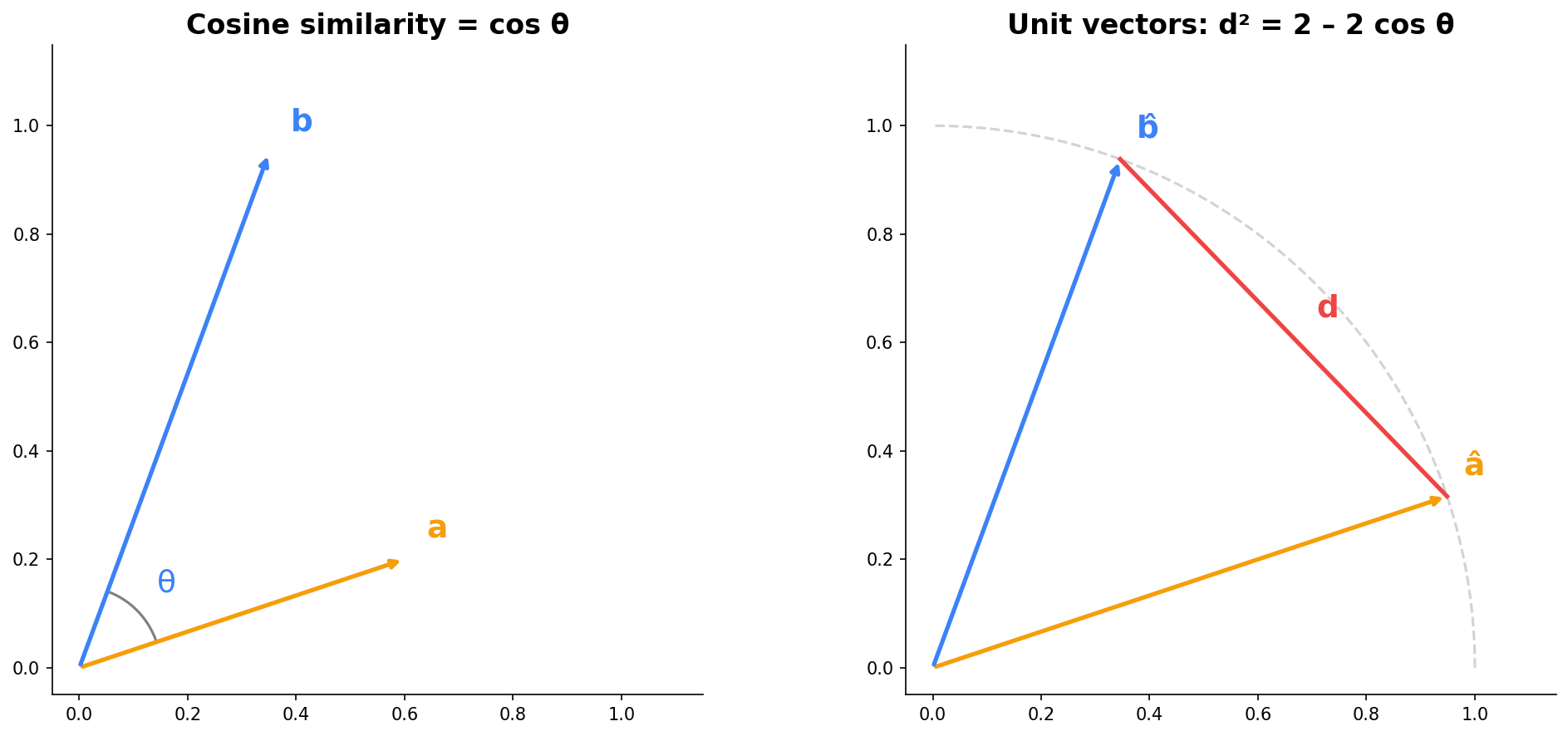
If we normalize vectors to unit length (project them onto the unit circle), the squared Euclidean distance between them is:

\[d^2 = 2 - 2\cos\theta\]

So high cosine similarity \(\Leftrightarrow\) small angle \(\Leftrightarrow\) normalized vectors are close together.

Biases and Weights

A Simple Neural Network

%%{init: {'theme': 'base', 'themeVariables': {'fontSize': '36px', 'primaryColor': '#f59e0b', 'primaryTextColor': '#0f172a', 'lineColor': '#f59e0b', 'clusterBkg': 'transparent', 'clusterBorder': '#f59e0b', 'clusterTextColor': '#fff'}, 'flowchart': {'nodeSpacing': 80, 'rankSpacing': 140, 'padding': 20, 'useMaxWidth': true}}}%%
graph LR
  subgraph Inputs[" "]
    direction TB
    X1(("x₁"))
    X2(("x₂"))
    X3(("x₃"))
  end
  subgraph Hidden["Hidden Layer"]
    direction TB
    H1(("y₁"))
    H2(("y₂"))
  end
  subgraph Output[" "]
    direction TB
    Y(("z"))
  end
  X1 --> H1 & H2
  X2 --> H1 & H2
  X3 --> H1 & H2
  H1 --> Y
  H2 --> Y

  style X1 fill:#3b82f6,stroke:#3b82f6,color:#fff
  style X2 fill:#3b82f6,stroke:#3b82f6,color:#fff
  style X3 fill:#3b82f6,stroke:#3b82f6,color:#fff
  style H1 fill:#f59e0b,stroke:#f59e0b,color:#fff
  style H2 fill:#f59e0b,stroke:#f59e0b,color:#fff
  style Y fill:#0f172a,stroke:#0f172a,color:#fff
  linkStyle default stroke:#334155,stroke-width:2px

A fully connected network: every input connects to every neuron in the next layer.

How a Neuron Decides

Each neuron in the hidden layer computes a weighted sum of its inputs plus a bias:

\[\hat{y} = b + w_1 x_1 + w_2 x_2 + w_3 x_3\]

The neuron “fires” (produces a nonzero output) only if this sum is positive:

  • The weights \(w_1, w_2, w_3\) determine which inputs matter and how much
  • The bias \(b\) sets the threshold — how large the weighted inputs must be before the neuron activates

If the weights are positive, the neuron fires when the inputs are large enough. The bias \(b\) controls how large — a more negative bias means the inputs must be stronger to activate the neuron. Training a neural network means finding the right weights and biases.